Dashboard
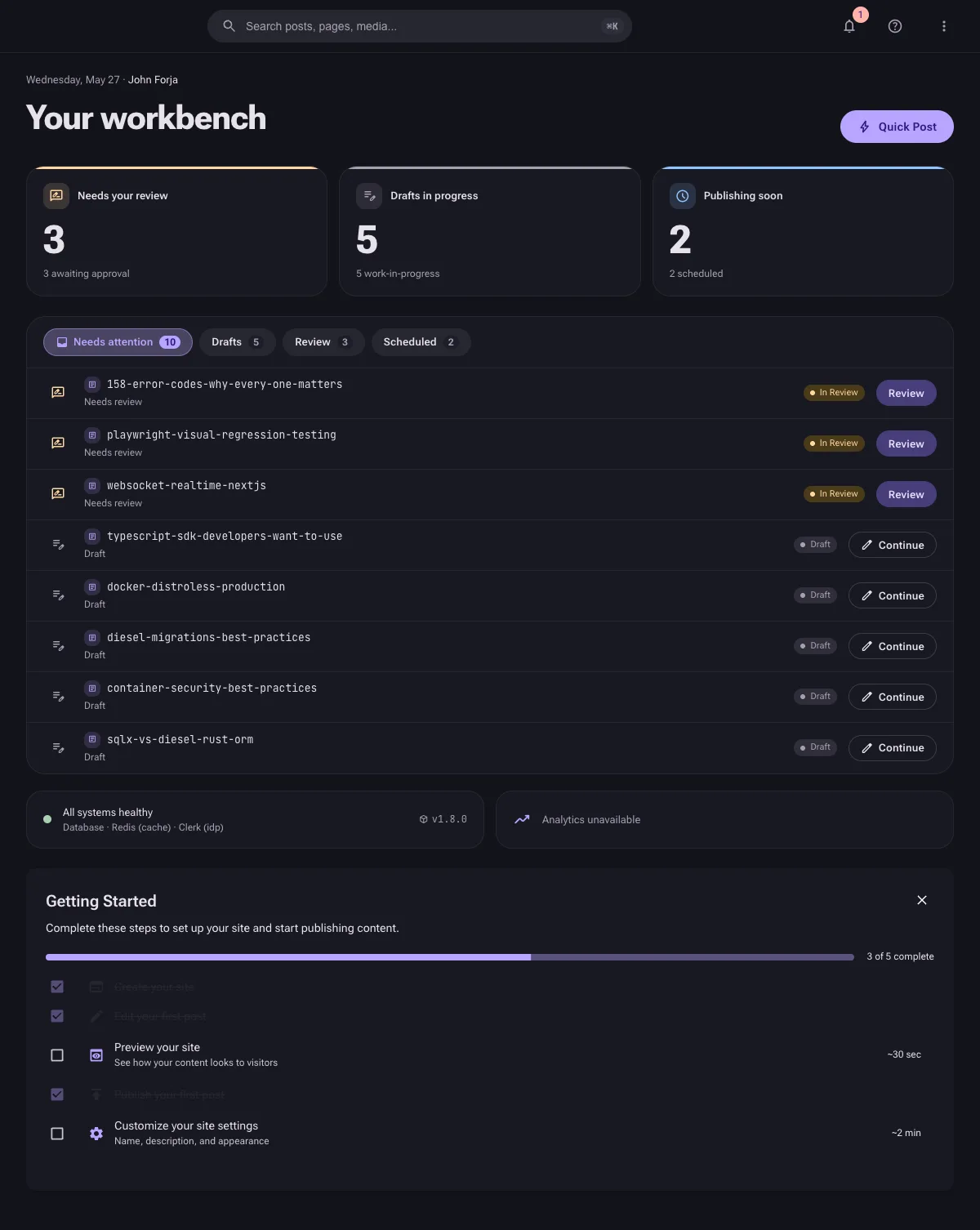
The home dashboard -- titled Your workbench -- is the first page you see after signing in and selecting a site. It is task-oriented: instead of vanity statistics, it surfaces the content that needs your attention right now (reviews, drafts, scheduled publishes) so you can jump straight back into work.
Accessing the Dashboard
Click Dashboard in the sidebar or navigate to the dashboard root (/). The workbench always reflects the currently selected site. If you have no sites yet, the dashboard instead walks you through onboarding and site creation (see First-run experience below).
Focus Cards
Three cards at the top summarise the work waiting on you. Each card is clickable and filters the feed below to that category.
| Card | What it counts |
|---|---|
| Needs your review | Blog posts and pages currently In Review (awaiting approval). |
| Drafts in progress | Blog posts and pages in Draft status (work-in-progress). |
| Publishing soon | Blog posts and pages that are Scheduled to publish. |
The counts combine blogs and pages for the selected site.
The Attention Feed
Below the cards, a filterable feed lists the actual items. Use the tabs to switch views:
| Tab | Shows |
|---|---|
| Needs attention | Everything that needs action (reviews + drafts). |
| Drafts | Your work-in-progress drafts. |
| Review | Items submitted for review. |
| Scheduled | Content scheduled to publish. |
Each row shows the item's title, its kind (Needs review, Draft, or Scheduled), and a primary action:
- Review -- opens the item for approval (review items).
- Continue -- reopens the item in the editor (drafts).
When there is nothing to act on, the feed shows an All caught up state.
Quick Post
The header includes a Quick Post button (lightning-bolt icon) that opens a dialog to draft a blog post without leaving the dashboard. This button only appears for members with write access -- viewers do not see it.
Health & Analytics Strips
Beneath the feed, two side-by-side strips give an at-a-glance signal:
- Health strip -- reports backend service health (e.g. All systems healthy or Service degraded).
- Analytics strip -- shows recent page views and the change versus the previous week, when analytics is enabled.
Setup Checklist
The first time you work in a new site, a Getting Started checklist appears to guide initial setup. It tracks these steps:
| Step | Goal |
|---|---|
| Create your site | Already done -- your site exists. |
| Edit your first post | Open a sample post and make it yours. |
| Preview your site | See how your content looks to visitors. |
| Publish your first post | Go live with one click. |
| Customize your site settings | Name, description, and appearance. |
When the site has more than one member, two additional steps appear:
| Step | Goal |
|---|---|
| Invite a team member | Add collaborators to your site. |
| Set up editorial workflow | Configure the editorial review process. |
Each step shows a time estimate and links to the relevant page. The checklist tracks progress, can be dismissed, and offers a Delete all sample content action once you no longer need the seeded examples.
Read-only Access
If your role on the site is Viewer (read-only), the dashboard shows an information notice reminding you that content is visible but cannot be modified, and action buttons such as Quick Post are hidden.
First-run Experience
When your account has no sites yet, the dashboard does not show the workbench. Instead it presents a short onboarding survey (what kind of content you publish) followed by a guided site-creation wizard that pre-fills sensible defaults based on your answers. Once your first site exists, the workbench takes over.
Next Steps
- Sites -- manage your sites.
- Blogs -- create and publish blog content.
- Roles & Permissions -- understand what each role can do.