Blogs
The blog management section is where you create, edit, and publish blog posts for your site. Forja provides a full-featured block editor with rich text formatting, localizations, scheduling, and more.
Blog Listing
Navigate to Blogs in the sidebar. The listing page shows all blog posts for the currently selected site. A Create Blog button and a Manage Templates button sit in the header.
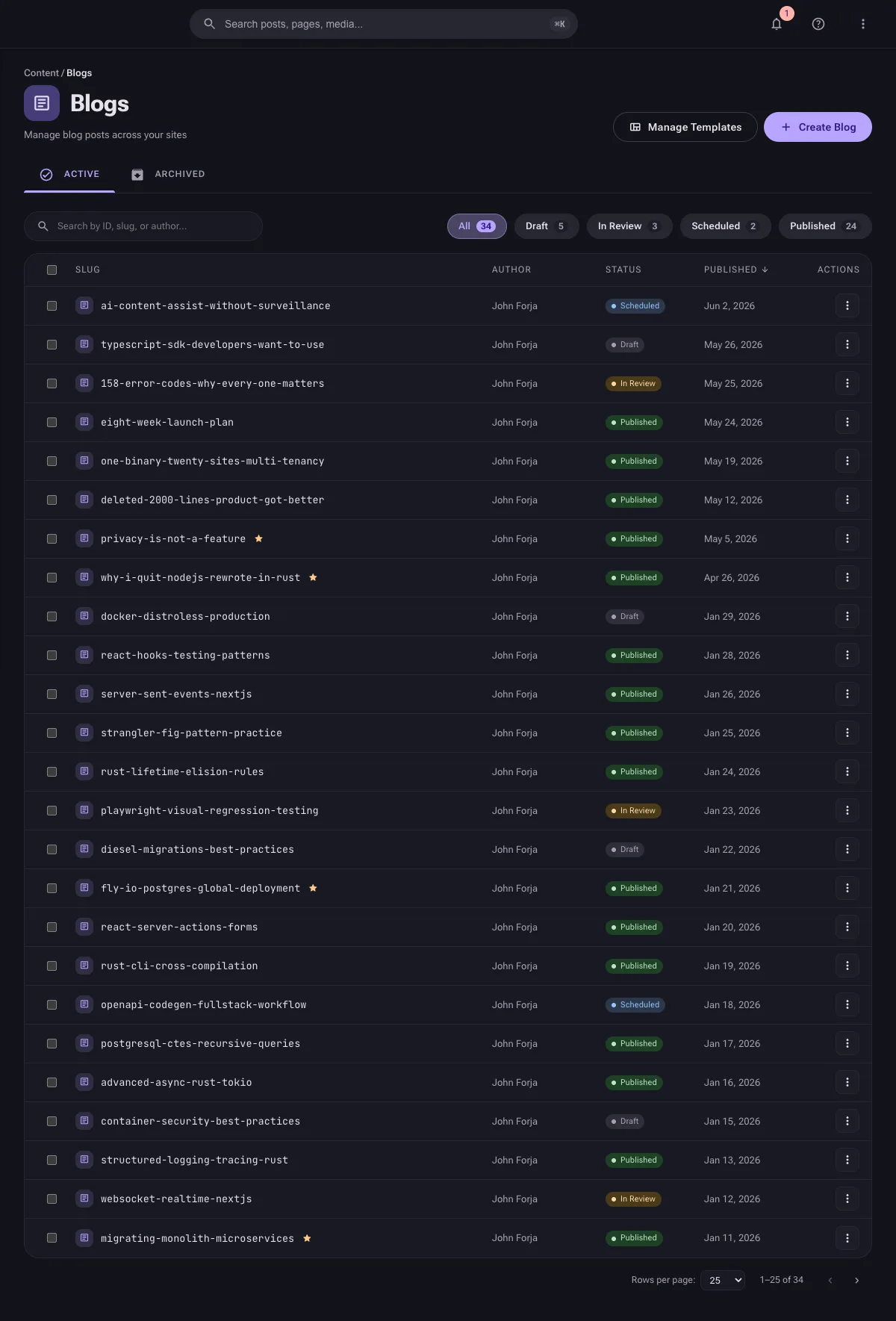
The list is split into two tabs: Active (drafts, in-review, scheduled, and published posts) and Archived.
List View Columns
| Column | Description |
|---|---|
| Slug | The post's URL slug. A ★ star next to the slug marks a featured post. |
| Author | The user who created the post. |
| Status | Draft, In Review, Scheduled, or Published. |
| Published | The publish date (or scheduled date). |
| Actions | A per-row menu (⋮) for actions such as edit, clone, and delete. |
Filtering and Searching
- Search -- the search field matches by ID, slug, or author.
- Status filter -- chips for All, Draft, In Review, Scheduled, and Published, each showing a count.
Bulk Actions
Select multiple posts using the checkboxes, then use the bulk actions menu:
- Publish -- publish all selected drafts.
- Unpublish -- revert selected posts to draft status.
- Delete -- move the selected posts to Trash (recoverable for 30 days).
Creating a Blog Post
Click Create Blog on the listing page to open the creation wizard. The first step asks how you want to start:
| Method | What it does |
|---|---|
| From scratch | Opens an empty editor with just a title. |
| From a template | Starts from a saved content template (see Manage Templates). |
| Import | Imports a Markdown file, parsing its title, excerpt, and body. |
| AI Assist | Describe your idea, review an AI-generated outline, and generate a draft. Available when the AI module is configured -- see AI Content Assist. |
After the method step you provide the title, then land in the full editor where you write the body and set metadata in the sidebar (see Block Editor). Use Save to keep it as a draft, or Publish to make it live.
Block Editor
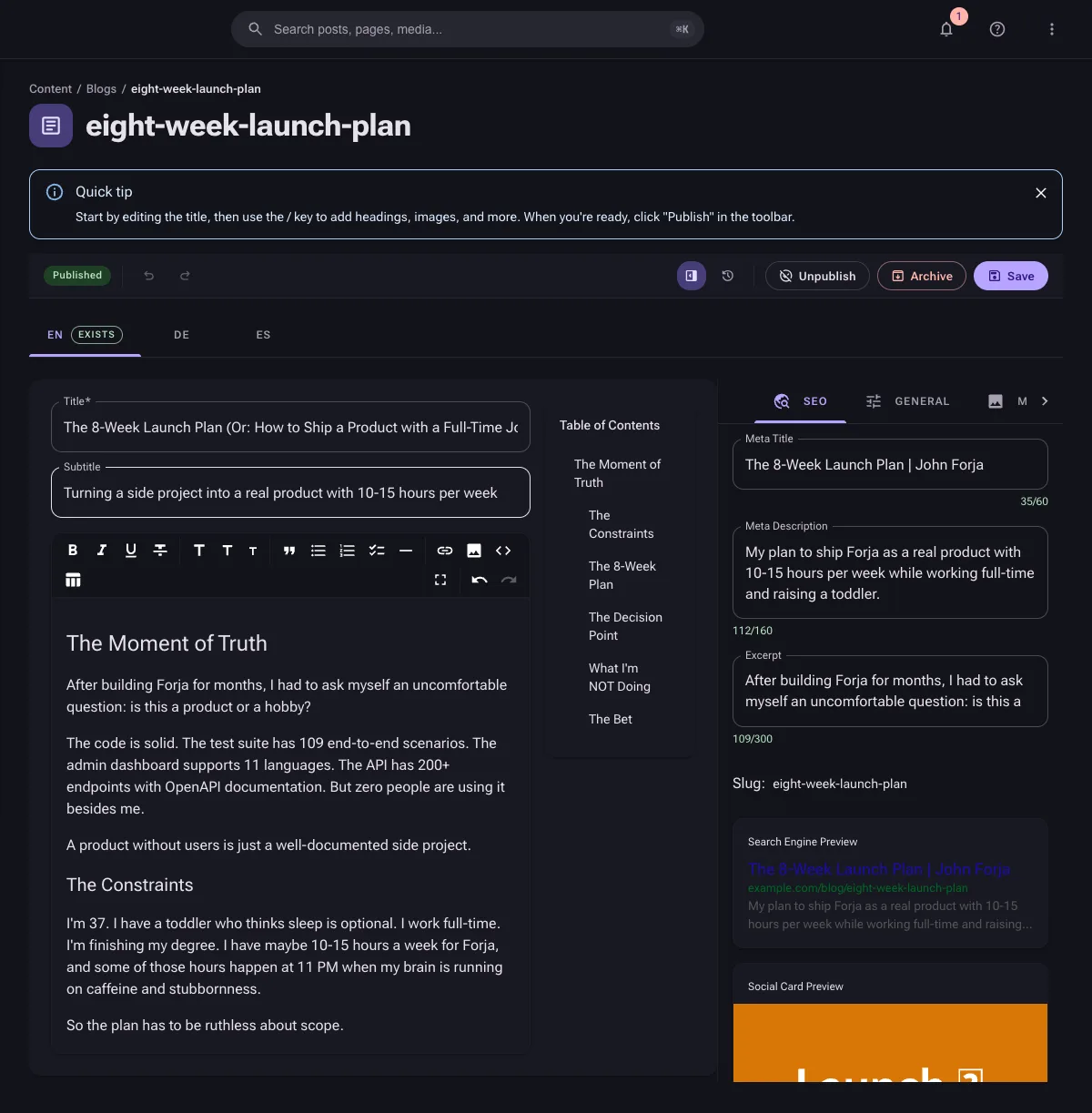
The blog editor uses a Tiptap-based block editor with rich formatting capabilities. Content is stored as Markdown for portability.
Toolbar
The toolbar provides quick access to formatting options:
- Text formatting -- Bold, Italic, Underline, Strikethrough
- Headings -- Heading 1, 2, 3
- Block structure -- Blockquote, Bullet List, Ordered List, Task List, Horizontal Rule
- Insert -- Link, Image (via media picker), Code Block, Table
- History -- Undo / Redo
Slash Commands
Type / anywhere in the editor to open the command palette. Filter by typing after the slash:
| Command | Inserts |
|---|---|
/paragraph | Plain text block |
/heading1, /heading2, /heading3 | Heading at the specified level |
/bulletList | Unordered list |
/orderedList | Numbered list |
/taskList | Checklist with toggleable items |
/blockquote | Quoted text |
/codeBlock | Syntax-highlighted code block |
/horizontalRule | Visual divider |
/image | Image from the media library |
/table | 3x3 table with header row |
Supported Block Types
- Paragraphs and headings (H1 -- H3)
- Lists -- bullet, ordered, and task lists with nesting
- Blockquotes
- Code blocks -- with syntax highlighting for common languages (via lowlight)
- Tables -- resizable columns and header rows
- Images -- inserted via the media picker dialog (no manual URL entry needed)
- Horizontal rules
Editor Sidebar
The editor has a collapsible right sidebar (toggle it with the panel icon in the toolbar) with four tabs for managing post metadata:
- SEO -- meta title, meta description, excerpt (with optional AI generation), slug, and a search-engine + social preview.
- General -- status, scheduling, and timestamps (published / created / updated).
- Media -- cover / featured image, chosen via the media picker.
- Relations -- categories and attached documents.
The editor also has a Title and Subtitle field above the body, and an auto-generated Table of Contents panel built from your headings.
Storage Format
Content is stored as Markdown via the tiptap-markdown extension. This means your content remains portable and readable even outside the editor.
Editing a Blog Post
- Click on a post in the listing to open the detail view.
- Modify any field as needed.
- Click Save to update the post.
Changes to published posts take effect immediately. If you want to make changes without affecting the live version, consider cloning the post (see Cloning).
Localizations
Forja supports multilingual content. To add translations for a blog post:
- Open the blog post detail view.
- Select a locale from the locale switcher (shown near the top of the editor).
- Enter the translated title, excerpt, and content for that locale.
- Save the post.
Each locale has its own title, excerpt, and content body. The slug, featured image, and taxonomy assignments are shared across locales.
Add locales to your site first via Locales before creating translations.
Scheduling
You can schedule posts to be published or unpublished at a future date and time:
- In the post editor, find the Scheduling section.
- Set a Publish date to schedule automatic publication.
- Optionally set an Unpublish date to automatically revert the post to draft status.
- Save the post. Its status changes to Scheduled.
The backend processes scheduled content and updates publication status at the configured intervals.
Featured Posts
Mark a post as Featured to highlight it on your site. Featured posts can be queried separately via the API, allowing your frontend template to display them in a hero section or featured carousel.
Toggle the featured flag in the post editor.
Review Workflow
The editorial workflow is feature-gated. An Admin or Owner must enable it in Settings > Site Settings under the "Editorial Workflow" toggle before these features become available.
For teams, Forja supports a structured editorial workflow with the following states:
State Machine
Draft ──▶ In Review ──▶ Published
  ▲            │
  └────────────┘  (Request Changes)

Draft ──▶ Scheduled ──▶ Published  (via publish date)

Any state ──▶ Archived
| State | Meaning |
|---|---|
| Draft | Work in progress. Only visible to team members in the admin. |
| In Review | Submitted for editorial review. Waiting for a Reviewer, Editor, or Admin to act. |
| Published | Live on the site and available via the public API. |
| Scheduled | Will be published automatically at the configured date and time. |
| Archived | Removed from the public site but retained in the system for reference. |
Review Actions
When a post is In Review, reviewers can take one of two actions:
- Approve -- moves the post to Published (or Scheduled if a future publish date is set).
- Request Changes -- moves the post back to Draft so the author can revise it. The author receives a notification (see Notifications).
Who Can Review
Users with the Reviewer, Editor, Admin, or Owner role on the site can approve posts or request changes. Authors can submit content for review but cannot approve their own posts.
Typical Flow
- A writer creates a post and saves it as Draft.
- When ready, the writer changes the status to In Review.
- An admin reviews the post and either approves it or requests changes.
- If changes are requested, the writer revises and resubmits.
Cloning
To create a copy of an existing blog post:
- Open the post you want to clone.
- Click the Clone button (or select it from the actions menu).
- A new draft is created with the same content, title (prefixed with "Copy of"), and taxonomy assignments.
- Edit the cloned post as needed and save.
Cloning is useful for creating similar posts or for testing changes without affecting the original.
Deleting a Blog Post
- Open the post, or use the per-row ⋮ menu in the listing.
- Click Delete and confirm the action.
Deleting a post is a soft delete -- it moves to Trash, where it can be restored for 30 days before automatic purge. If the post was published, it immediately becomes unavailable on your site once deleted.
Permissions
| Action | Required Role |
|---|---|
| View posts | Viewer |
| Create/edit posts | Author |
| Publish/unpublish | Editor |
| Delete posts | Editor |
| Bulk actions | Editor |