Admin Guide Overview
The Forja admin dashboard is a React-based single-page application that gives you full control over your sites, content, media, and settings. It is accessible at /dashboard in production and at localhost:3000 during local development.
Accessing the Dashboard
Open your browser and navigate to the dashboard URL. If you are not signed in, you will be redirected to the login page at /dashboard/login. Once authenticated via Clerk, you land on the home dashboard.
Layout
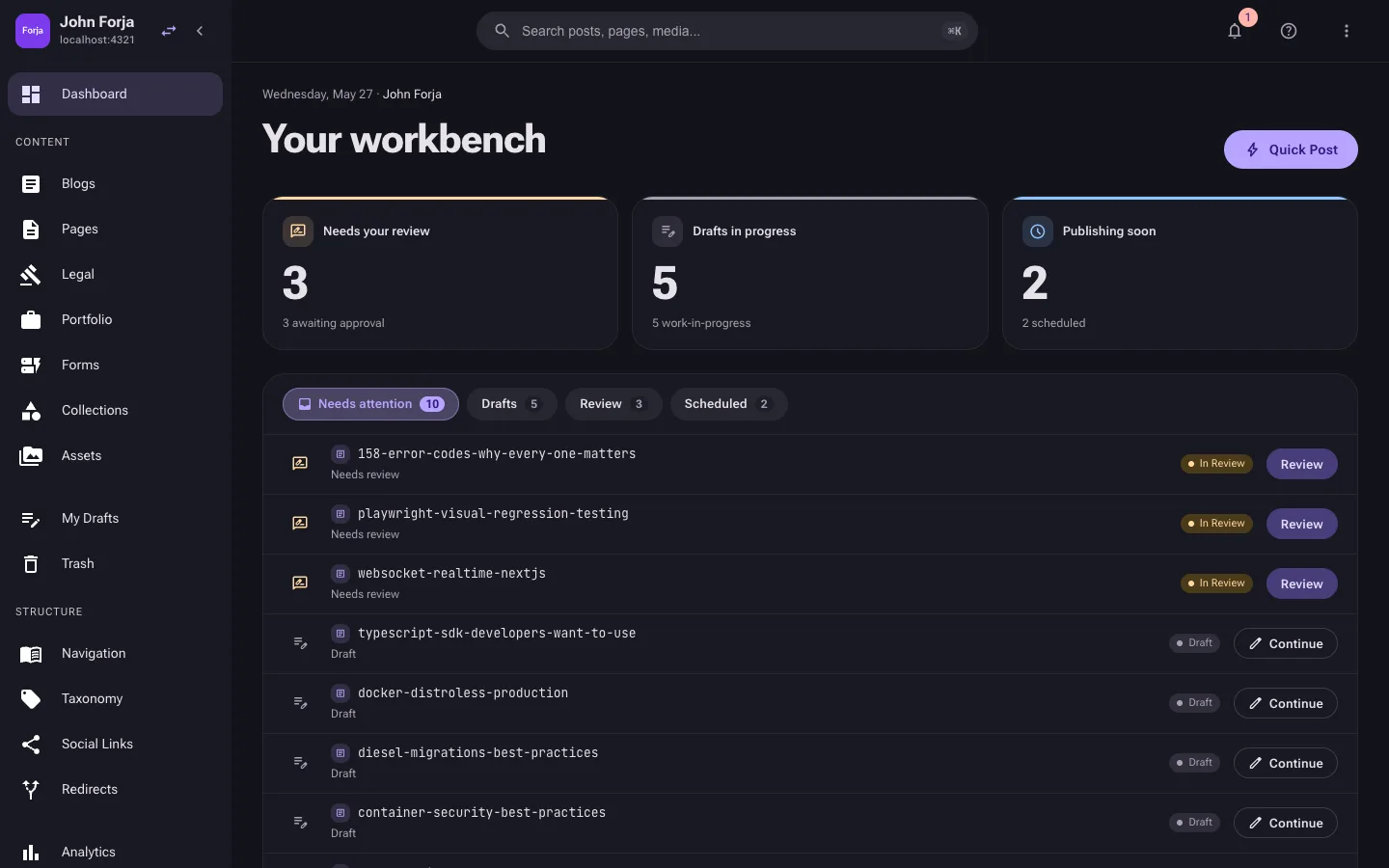
The admin interface follows a standard three-zone layout:
┌─────────────────────────────────────────────────────────┐
│            Top bar: search · bell · help · ⋮            │
├──────────┬──────────────────────────────────────────────┤
│ Site ▾   │                                              │
│          │                                              │
│ Sidebar  │              Main content area               │
│  - Home  │                                              │
│  - Blogs │                                              │
│  - Pages │                                              │
│  - ...   │                                              │
│ [avatar] │                                              │
└──────────┴──────────────────────────────────────────────┘
Top Bar
The top bar is intentionally minimal. It contains:
- Command palette trigger -- a search-styled button in the centre (placeholder Search posts, pages, media…). Click it or press
Cmd+K(macOS) /Ctrl+K(Windows/Linux) to open the command palette for quick navigation and actions. - Notifications bell -- shows the unread notification count. Click to view and manage notifications.
- Help menu -- the ? icon opens contextual help, the guided tour, and documentation links.
- Account menu -- the ⋮ icon opens your account menu: Preferences (theme, language, density, autosave, and more), Leave Site (non-owners on the current site), System (system administrators only), and Sign out.
The site selector lives at the top of the sidebar (not the top bar) -- it shows the current site and lets you switch sites or open the site launcher. Your profile is reached from the avatar in the sidebar footer.
Sidebar Navigation
The sidebar organizes all features into logical groups:
| Group | Pages |
|---|---|
| (ungrouped) | Dashboard |
| Content | Blogs, Pages, Legal, Portfolio, Forms, Collections, Assets (each content module is gated — disabled modules are hidden; Assets is always shown) |
| (ungrouped) | My Drafts, Trash (admin only) |
| Structure | Navigation, Taxonomy, Social Links, Redirects |
| (ungrouped) | Analytics (when enabled via feature toggle) |
| Administration (admin+) | Site Settings, Activity |
There is no standalone Documents entry in the sidebar. Documents are managed as a tab within Assets (/media/documents). Members, webhooks, and API keys are likewise not separate sidebar items -- they live under Site Settings (/site-settings/*).
The sidebar is collapsible. On smaller screens it automatically collapses to icon-only mode.
System administrators have access to an additional System menu from the user account menu (profile avatar → System). This provides system-wide management pages: Dashboard, Sites, Users, and Languages — not scoped to a single site.
Main Content Area
The main content area renders the page you selected from the sidebar. Most pages follow a list-detail pattern: a table or grid listing records on the left, and a detail/edit view when you select or create a record.
Site Context
Forja is a multi-site CMS. Before you can manage content, you need to select a site from the site selector at the top of the sidebar. All content operations (blogs, pages, media, navigation, etc.) are scoped to the currently active site.
If you have not created any sites yet, the dashboard will guide you through the setup process.
Keyboard Shortcuts
| Shortcut | Action |
|---|---|
Cmd+K / Ctrl+K | Open command palette |
Theme & Appearance
Appearance is configured in the Preferences drawer (account menu ⋮ → Preferences), not via a top-bar toggle. There you can change:
- Theme -- choose from the available light and dark themes.
- Accent colour -- pick the interface accent.
- Density -- Comfortable or Compact spacing.
- Language -- the admin UI language (this does not affect your content locales).
- Autosave and table page size -- editor and list-view behaviour.
Your preferences are saved and persist across sessions.
Login Page
When you are not signed in, the dashboard redirects you to the login page. This page renders the Clerk sign-in widget, which supports email/password and social login (Google, GitHub, etc.). After successful authentication, you are redirected back to the dashboard.
If Clerk is not configured, the admin UI cannot authenticate users -- you can still access the API directly with API keys.
API Documentation Viewer
The backend serves interactive API documentation at /api-docs via Swagger UI. This is available without authentication and lets you explore every endpoint, try requests, and inspect response schemas directly in the browser.
Content Detail Pages
When you click into a specific blog post or page, you enter a detail editor with multiple tabs or sections:
- Blog detail -- the Tiptap block editor for writing content, plus sidebar panels for status, slug, featured image, category/tag assignment, excerpt, SEO metadata, and localization.
- Page detail -- a section-based editor where you add, reorder, and configure page sections (Hero, Features, CTA, etc.). Each section has its own title, text, image, and structured items.
These detail views are documented in their respective content guides: Blogs and Pages.
Next Steps
- Authentication -- learn about signing in, signing up, and role-based access.
- Dashboard -- explore the home dashboard and its widgets.
- Sites -- create and manage your sites.