Assets
The Assets library is where you upload, organize, and manage all files (images, video, audio, and documents) for your site. Assets uploaded here can be embedded in blog posts, pages, and other content types.
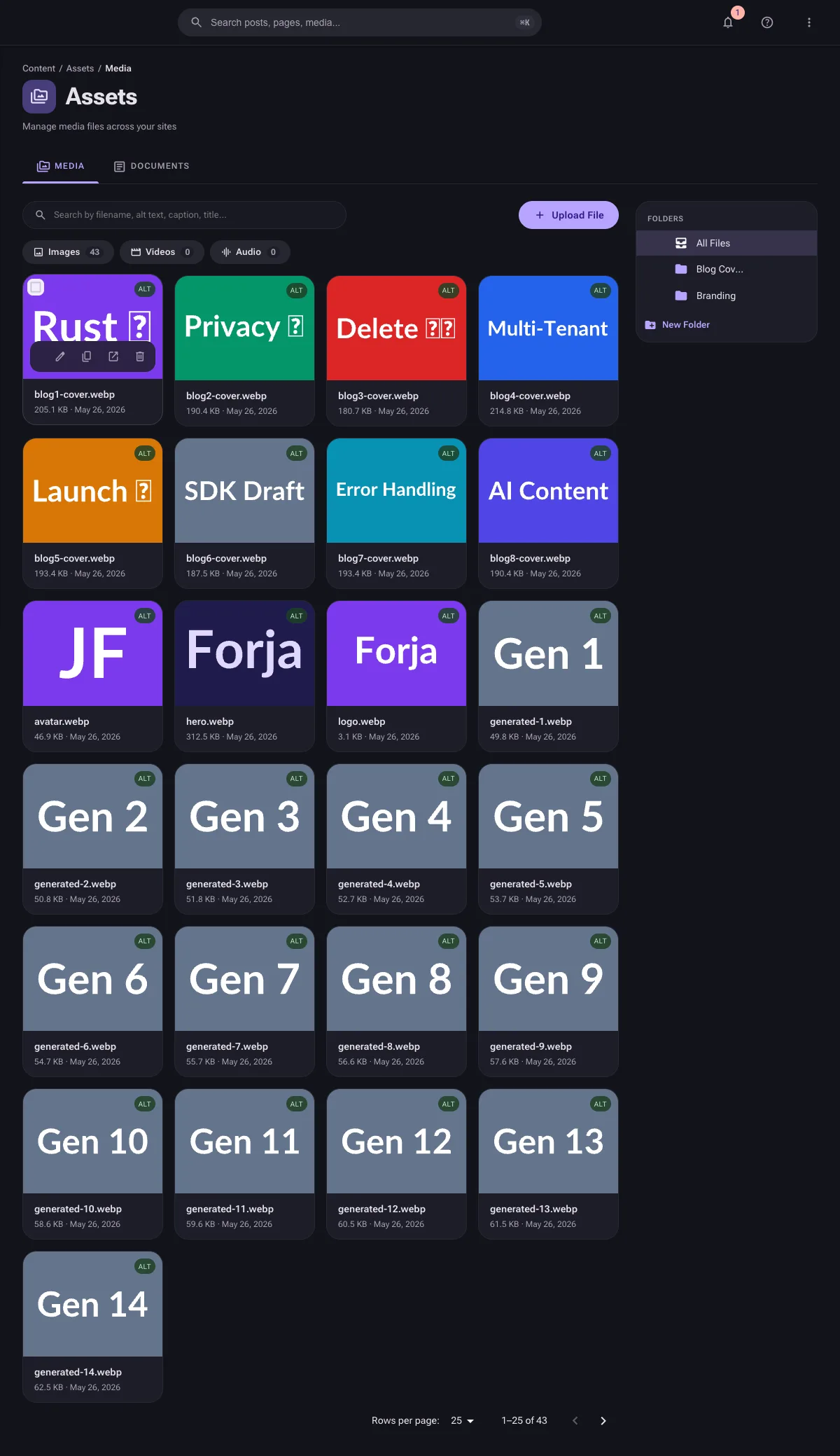
Accessing the Assets Library
Navigate to Assets in the sidebar (the route is /media). The page has two tabs:
- Media -- images, video, and audio files.
- Documents -- file-based documents (PDFs and similar). This is where the document content type lives; see Documents.
The library shows all assets for the currently selected site.
Folders
Assets can be organized into folders, shown in the panel on the right:
- All Files -- the default view across every folder.
- Custom folders (e.g. Blog Covers, Branding) -- click a folder to filter the grid to it.
- New Folder -- create a folder to group related assets.
Media Grid and List Views
The media library supports two viewing modes:
- Grid view -- displays media files as thumbnail cards. Best for browsing images.
- List view -- displays media files in a table format with columns for name, type, size, and upload date.
Toggle between views using the view switcher in the top-right corner of the media library.
Uploading Files
Single Upload
- Click the Upload button in the media library.
- Select a file from your computer using the file picker.
- The file is uploaded immediately and appears in the library.
Drag and Drop
You can also drag files directly from your file manager and drop them onto the media library area. Multiple files can be dropped at once.
Supported File Types
Forja accepts common web file formats, grouped on the Media tab by category (each shown as a filter chip with a count):
| Category | Examples |
|---|---|
| Images | JPEG, PNG, GIF, WebP, SVG |
| Videos | Common web video formats |
| Audio | Common web audio formats |
File-based documents (PDFs and similar) are managed on the Documents tab rather than the Media tab. The exact accepted formats and maximum size depend on backend configuration.
Maximum file size is determined by the backend configuration. Contact your system administrator if you encounter upload size limits.
Image Focal Point
For image files, you can set a focal point that controls how the image is cropped in responsive layouts and thumbnails.
Setting the Focal Point
- Click on an image to open its detail panel.
- The image preview shows a crosshair indicating the current focal point (default: center).
- Click anywhere on the image to reposition the focal point.
- Use arrow keys to nudge the focal point in small increments (1% per press).
- Click Save to persist the change. Variants are regenerated with the new crop center.
- Click Reset to Center to return to the default (0.5, 0.5).
How It Works
- The focal point is stored as normalized coordinates (
focal_x,focal_y) ranging from 0.0 (top/left) to 1.0 (bottom/right). - Thumbnail variants are cropped to a 1:1 square centered on the focal point. Other variants (small, medium, large, WebP) resize proportionally.
- Grid card thumbnails in the media library use CSS
object-positionto reflect the focal point, so you can see the effect immediately.
Set the focal point on portrait photos to the subject's face. This ensures the face is visible in square thumbnail crops instead of being cut off.
Image Thumbnails
For image files, the media library automatically displays:
- A thumbnail preview in grid view (cropped to the focal point).
- The image dimensions (width x height).
- The file size.
Searching and Filtering
- Search -- the search field matches by filename, alt text, caption, and title.
- Type filter -- the Images / Videos / Audio chips filter the Media tab by category.
- Folders -- select a folder in the folders panel to scope the grid to it.
Managing Files
Viewing File Details
Click on any file in the media library to open its detail panel. The detail panel shows:
- File name -- the original file name.
- URL -- the public URL for this file. Click to copy.
- Dimensions -- width and height (images only).
- File size -- the file size in a human-readable format.
- Uploaded -- the upload date and time.
- MIME type -- the file's content type.
Copying the URL
In the file detail panel, click the Copy URL button to copy the file's public URL to your clipboard. Use this URL to reference the file in external applications.
Deleting Files
- Select one or more files in the media library.
- Click the Delete button and confirm.
Deleted files are moved to the Trash and can be restored within 30 days. After 30 days, they are permanently purged (including storage files). See the Trash guide for details.
If a media file is in use by blog posts or pages, you will be warned before deletion. Force-deleting a referenced file will break those references.
Media Metadata
Each media item can have per-locale metadata that provides additional context for your frontend templates.
Metadata Fields
| Field | Purpose |
|---|---|
| Alt text | A text description of the image, read by screen readers and used by search engines. Important for accessibility and SEO. |
| Caption | Descriptive text displayed below the image in your frontend template. |
| Title | Text shown as a tooltip when a user hovers over the image. |
Editing Metadata
- Click on a media item to open its detail panel.
- Switch to the desired locale using the locale selector.
- Fill in the alt text, caption, and/or title fields.
- Save.
Because metadata is localized, you can provide translations for each language your site supports.
Always fill in alt text for images. It improves your site's accessibility for users with screen readers and helps search engines understand your content.
Using Media in Content
When editing a blog post or page, you can insert media files from the library:
- In the Markdown editor, click the Insert Image button in the toolbar.
- The media library picker opens, showing all available files.
- Select the desired file.
- The image is inserted into your content as a Markdown image reference.
Storage Backends
Forja supports two storage backends for media files:
- Local storage -- files are stored on the server's filesystem.
- S3-compatible storage -- files are stored in an S3 bucket (AWS S3, MinIO, DigitalOcean Spaces, etc.).
The storage backend is configured at the system level. See the S3 Storage deployment guide for details.
Permissions
| Action | Required Role |
|---|---|
| View media | Viewer |
| Upload files | Editor |
| Delete files | Editor |